Embed a video in a WordPress site
It’s easy to embed a video in a hosted WordPress® page or post.
Get the video’s embed code
Sign in to our dashboard and click on the thumbnail of the video you would like to embed.
Below the preview player you should see a snippet of code to embed it. This is what you will copy to your site:
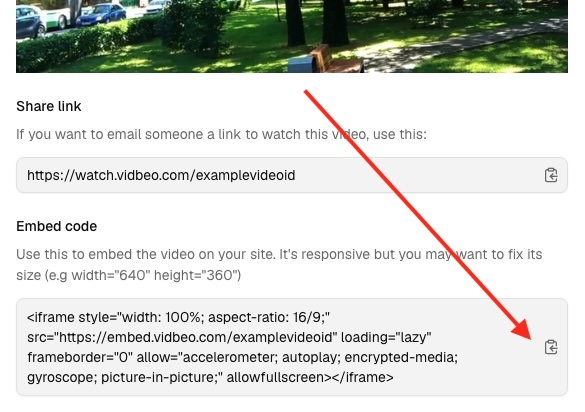
If you don’t see that embed code, your role may not permit access. Another user should be able to get that embed code for you.
Note: If you need direct links to video files (such as .mp4, or HLS .m3u8), we can provide them. To prevent hot-linking, our default ones automatically expire. You can then use your own player. However we will not be able to generate analytics or provide extra features, like subtitles.
Sign in to WordPress
Whoever manages your site should be able to tell you the details to use.
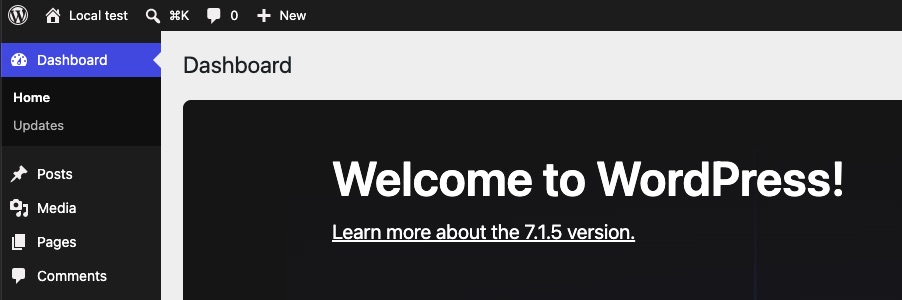
Here we are using the latest version, as of November 2026:
Page or post?
On the left you should see links for “Posts” and “Pages”. Pages are generally static ones, like a contact or about page. Posts are generally time-based content, like blog posts.
Click on “Posts” or “Pages” and you should see a list of your current ones.
Click on one’s name to edit it, or on “Add post” or “Add page” to add a new one.
There are two ways to edit:
Using the visual editor
If you see formatted text, you are using the visual editor.
Add a new block. The button might look like a little ”+“.
You should see a panel asking which kind of block. You want “Custom HTML”. If “Custom HTML” is not shown, click “Browse all”. It should be listed somewhere in the list of available ones:
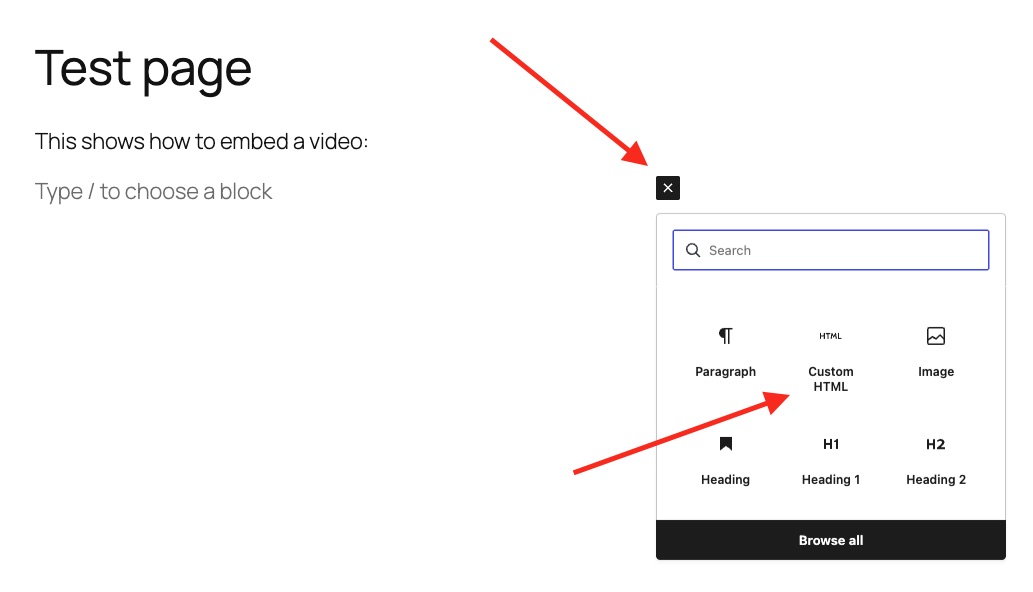
Click the button to edit that custom HTML:
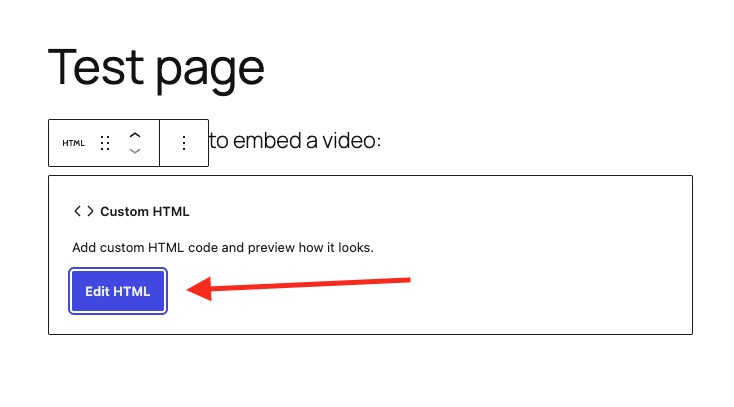
Paste in the snippet of embed code you copied from our dashboard. Then click “Update”:
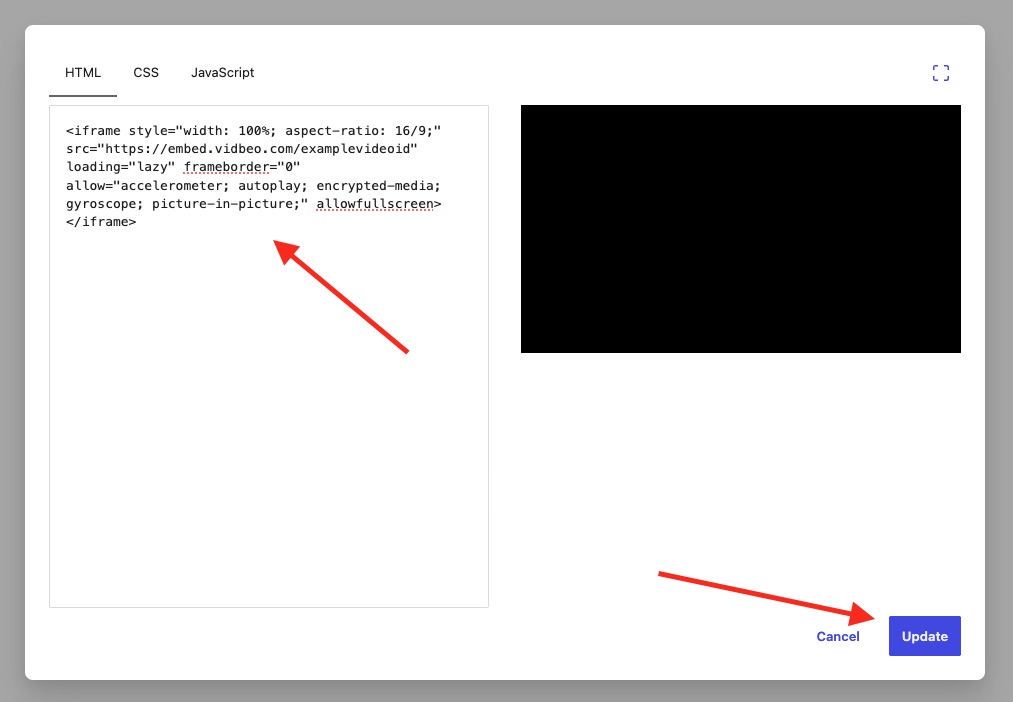
If that worked, you should see our player embedded within your page where you added that block. Make sure to preview your post/page before publishing it.
Using the code editor
If you see unstyled text and things like <!-- wp:paragraph --> you are using the code editor.
Simply paste that snippet of code from our dashboard where you want the video to appear, wrapped in special <!-- wp:html --> tags that tell WordPress it is custom HTML.
For example:
<!-- wp:html -->
<iframe style="width: 100%; aspect-ratio: 16/9;" src="https://embed.vidbeo.com/examplevideoid" loading="lazy" frameborder="0" allow="accelerometer; autoplay; encrypted-media; gyroscope; picture-in-picture;" allowfullscreen></iframe>
<!-- /wp:html -->
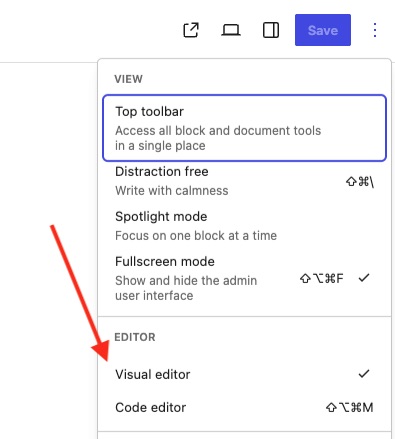
Change editor
You can toggle between the editors using the dropdown in the top-right:
The WordPress® trademark is the intellectual property of the WordPress Foundation (with Automattic holding commercial rights).
Updated: November 26, 2026